Blog

  • Docker and containerd on openSUSE: reaching the limit for cgroup (and how to overcome it!)

    I recently encountered a limitation during an experiment I was conducting; after some trial and error, I recognized that the limitation was due to cgroups.

    But let’s start from the beginning. I open sourced docker-salt, a small pet project I had in mind in order to have a full blown setup for SaltStack: a master with an army of minions. Now for the fun part: what if I really start a hundred of minions on a server that has 16GB of RAM ready to be stressed with SaltStack?

    yankee:~ # docker run -d --hostname saltmaster --name saltmaster -v `pwd`/srv/salt:/srv/salt -p 8000:8000 -ti mbologna/saltstack-master
    yankee:~ # for i in {1..100}; do docker run -d --hostname saltminion$i --name saltminion$i --link saltmaster:salt mbologna/saltstack-minion ; done                                                                                        
    

    When reaching around the ~50th container created, Docker cannot start containers anymore:

    [...]
    a9e72a3b9452d1ff23628ab431e1b3127a0cbf218bfa179d602230f676e3740
    docker: Error response from daemon: containerd: container not started.
    a827de31439a2937ceebd8769e742038c395c9543e548071f36058789b9b144c
    docker: Error response from daemon: invalid header field value "oci runtime error: container_linux.go:247: starting container process caused \"process_linux.go:237: starting init process command caused \\\"fork/exec /proc/self/exe: resource temporarily unavailable\\\"\"\n".
    [...]
    

    By looking at the logs, we can see a more verbose message:

    yankee containerd[2072]: time="2017-04-20T22:59:10.608383236+02:00" level=error msg="containerd: start container" error="oci runtime error: container_linux.go:247: starting container process caused \"process_linux.go:243: running exec setns process for init caused \\\"exit status 6\\\"\"\n" id=aa642284b64dc97a519f6d33004d4a1468c13b9ef52bb05338fc09396631567f
    

    The problem here is that we reached the limit of the cgroup imposed for containerd, so we cannot fork any new process to spawn a new container.

    The solution is pretty easy: open /usr/lib/systemd/system/containerd.service and add the directive TasksMax=infinity to overcome the problem:

    [Service]
    [...]
    TasksMax=infinity
    [...]
    

    Issue a systemctl daemon-reload followed by systemctl restart containerd and you are good to go. Now the army of 100 minions can be started (sky is the limit!)

  • Secure your SSH server against brute-force attacks with Fail2ban

    The problem: SSH can be brute-forced

    I usually leave an SSH server on a dedicated port on every server I administer and, as you may recall, I even linked two well-written guides to properly configure and harden SSH services.

    Now, Internet is a notoriously bad place: scanners and exploiters have always been there, but brute-forcers are on the rise and SSH is one of the services that is heavily targeted by them. Let’s gather some data:

    quebec:/var/log # ag "Invalid user" auth.log.2 auth.log.3 | wc -l
    4560
    quebec:/var/log # head -n 1 auth.log.3 | cut -d " " -f 1-3
    May  8 07:39:01
    quebec:/var/log # tail -n 1 auth.log.2 | cut -d " " -f 1-3
    May 21 07:39:01
    

    So, even if my SSH is allowing only PubkeyAuthentication, in the timespan of two weeks there has been 4560 brute-force attemps (~325 attempts per day).

    This is annoying and potentially insecure, depending on your configuration. What can we do?

    The solution: using Fail2ban

    I have recently read some posts about this problem, and luckily (for us) there are multiple solutions to this problem: the most popular one is Fail2ban. To cut a long story short, the idea behind Fail2ban is to monitor log files of the monitored services and keep track of which IP addresses are trying to use a brute-force attack to use the service. If the same IP address causes a number of bad events in the specified time frame, Fail2ban bans that IP (using netfilter/iptables) for a configure d time amount.

    So I just need to install Fail2ban and I am ready to go:

    # zypper in fail2ban
    

    NO. NO. NO. You will not be protected against brute-force attacks if you just install it without configuring it.

    You MUST configure it!

    Let’s take a step back. The core of Fail2ban is the configuration:

    # "bantime" is the number of seconds that a host is banned.
    bantime  = 600
    
    # A host is banned if it has generated "maxretry" during the last "findtime"
    # seconds.
    findtime = 600
    maxretry = 5
    

    These are the default values. And brute-forcers know them, so they can time accordingly their attempts not to break these limits (or to begin again their attempts after the bantime). Again, let’s gather some data. I noticed a frequent brute-forcer IP and follow his data:

    quebec:/var/log # ag "Invalid user" auth.log.2 auth.log.3 | ag <IP> | cut -d " " -f 1-3
    
    auth.log.2:8106:May 21 03:34:22
    auth.log.2:8112:May 21 03:43:41
    auth.log.2:8116:May 21 03:53:00
    auth.log.2:8120:May 21 04:02:18
    auth.log.2:8126:May 21 04:11:47
    auth.log.2:8132:May 21 04:21:08
    

    Can you believe it? It was just on the edge of the 600 seconds between every attempt!

    Key concept: outsmarting brute-forcers

    The key concept here is to provision a personalized version of your specific choosing of these values, in order to outsmart the brute-forcers (which is easily done). In order to do so, do not modify Fail2ban’s default config file (/etc/fail2ban/fail2ban.conf) but rather just override the defaults in another config file that you can create with:

    quebec:/etc/jail2ban # awk '{ printf "# "; print; }' /etc/fail2ban/jail.conf | sudo tee /etc/fail2ban/jail.local
    

    Your customizations have to be defined in /etc/fail2ban/jail.local, so your selected bantime, findtime and maxretry must go there.

    Further customization

    Some useful findings:

    • you can selectively whitelist a group of IPs, hosts, subnets, etc. in order to not being banned when accessing services from whitelisted IPs (e.g. ignoreip = <VPN subnet>/8 <another VPN subnet>/16)
    • you can receive an email everytime someone is banned with their whois (with good relief from the system administrator)
    • if you are using WordPress, you can extend Fail2ban to monitor failed WordPress login attempts with a WordPress plugin (did I mention that Fail2ban not only monitors sshd? It also monitors nginx, apache, vsftpd and other services)
    • you can have Fail2ban automatically sends the banned IPs to a shared blacklist (I have never used this)

    Disadvantages

    Everything seems perfect now, but what are the disadvantages of it? Given that Fail2ban reasons in terms of banning single IPs, it cannot protect you against distributed brute-force attacks. In this case Fail2ban is pretty useless and other solutions should be implemented that depends from case to case.

  • OpenSUSE Leap 42.2: this is how I work (my setup)

    Motivation

    I switched my distribution of choice to OpenSUSE. There are a lot of motivations behind this choice:

    1. I wanted an enterprise-grade quality of software in terms of stability, package choice, and supportability
    2. Growing interest in software non-distribution specific and/or customized, e.g. Gnome
    3. Dogfooding

    After nearly one year of usage, I can say that I am mostly satisfied with the setup I built.

    In this post I will cover a step-by-step advanced installation of OpenSUSE: we are going to mimic the exact setup I have on my machine. I want to share the setup first of all for myself, keeping track on why I did some decisions back then, and secondly for you, fellow readers: you can follow my example and setup a successful OpenSUSE box.

    Leap or Tumbleweed?

    OpenSUSE comes in two variants:

    • Leap: represent the stable branch. It’s a fixed schedule release, which means that a release comes out from time to time. You pick a release, and install it: every update is based on the release version.

    • Tumbleweed: represent the bleeding-edge branch, and it’s a rolling release (which means that you install a snapshot of that branch and apply updates from there on).

    On my machine, I always want stability over the bleeding-edge version of the latest package, so I choose Leap. Leap has version number 42: as the time of writing, two releases have been made available to the public:

    • 42.1 (released 2015-11-04)
    • 42.2 (released 2016-11-16)

    Let’s download 42.2 (the most recent one), burn it to a USB key (or a DVD, if your computer still has it) and follow the instructions.

    This post will not cover every choice. I will just point out what I changed from the default. If nothing is mentioned here, it means I followed the default.

    Installation choices

    Offline install

    Install the distribution in offline mode: if you use your laptop in clamshell mode, disconnect everything (even network): I want to install the distribution as it has been released (potential updates will be applied after the installation).

    Network Settings

    I enforce a static hostname and domain name. Feel free to name your machine and domain name, and check “Assign Hostname to Loopback IP”.
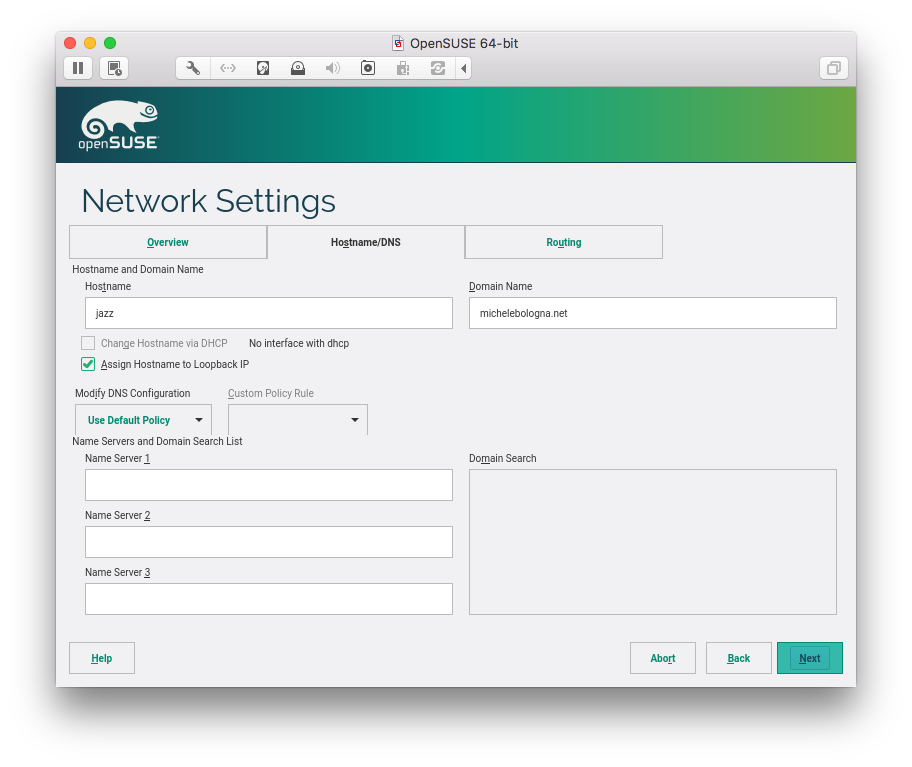
    hostname selection

    Partition layout

    Base partitioning: /boot and LVM

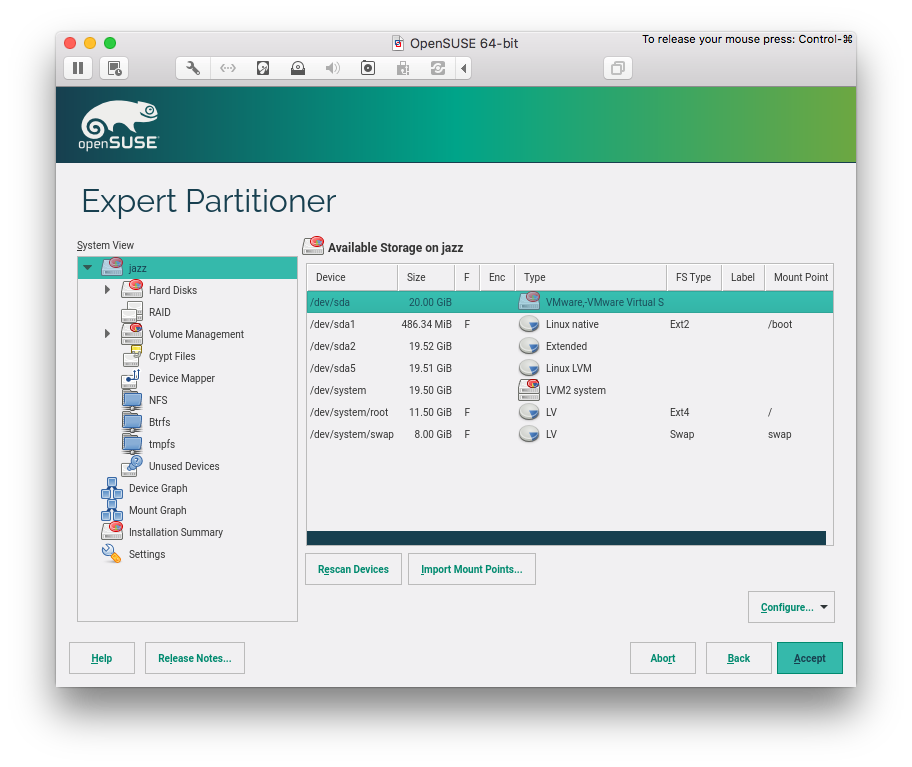
    For maximum compatibility, I want my hard drive partitioned with:

    • a primary partition that will contain /boot
    • an extended partition with 0x8E (Linux LVM) with a system Volume Group (VG) and at least two Logical Volumes (LV)

    partitioning hard drive

    /boot

    /boot should be an ext2 partition type and separated from the LVM partition (in case I need to take out my hard-drive and insert in another computer, this ensures compatibility with legacy BIOSes and older computers). The partition should be sized (roughly) at ~500 MB – I choose 487 MiB (1 Megabyte = 0.953674 Mebibyte).

    Linux LVM

    I use LVM everywhere for easiness of partition shrinking, growing, moving, etc. There is no motivation for not using it. If your BIOS support hard drive encryption, enable it there. If not, use encrypted LVM.

    LVM should have a VG named system that must have two LVs:

    • root that will contain all your data (I normally do not need a separated /home partition)
    • swap that will act as swap (this will be useful when you use suspend).

    For a system with more than one hard drive, I also create another VG (e.g. storage), or add them to system. Unless you use XFS, there is no need to do a final decision here (more on this in the following paragraph).

    root LV file-system

    I am a great fan of XFS. Over the many advantages of it, there is one major disadvantage: an XFS partition cannot be shrunk.

    So, think carefully here: if you think you are going to shrink your partition in the future for every reason, I would advise against XFS. Otherwise, go for XFS.

    In my experience, the aforementioned is non-existent for servers, although it can happen for desktop and laptop machines. For my main system I will not choose XFS, thus I will go with ext4.

    swap LV size

    A long time ago we reserved twice the size of RAM to the swap partition. Nowadays most computers have >= 8 GB of RAM, so I will just choose the same amount of RAM size for my swap partition.

    Clock and Time Zone

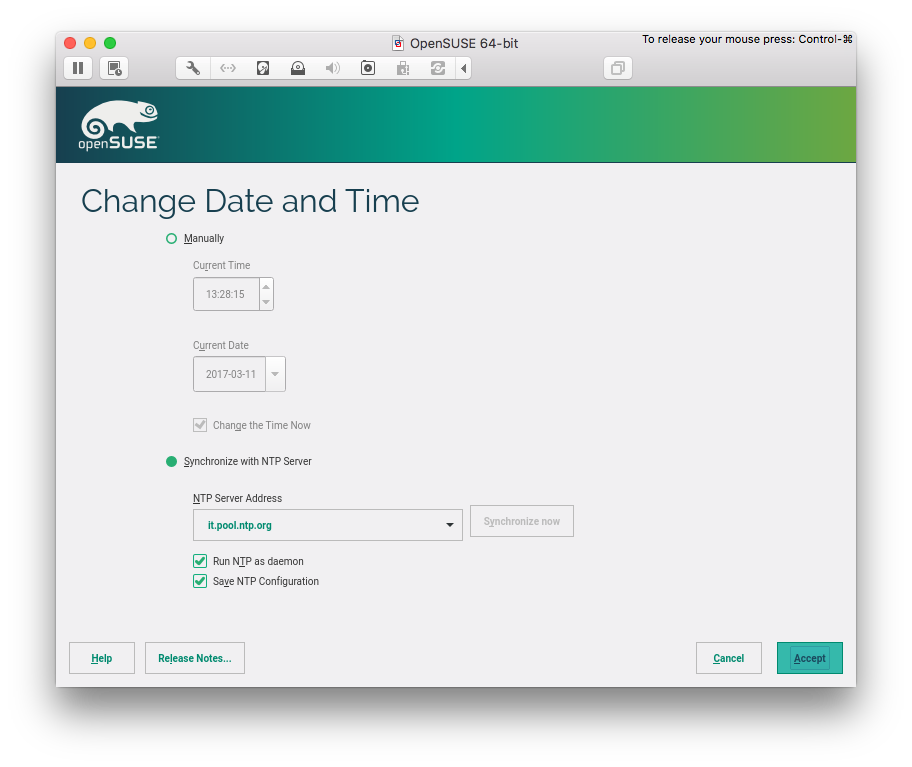
    I synchronize my system with an NTP server, and I chose to run NTP as a daemon for my system, saving the configuration.

    clock and timezone

    Desktop selection

    I usually go with Gnome or XFCE (it is a personal preference here so feel free to choose another one). During our customization (in the next post) we are going to also install i3, another great window manager that I like a lot.

    Local User

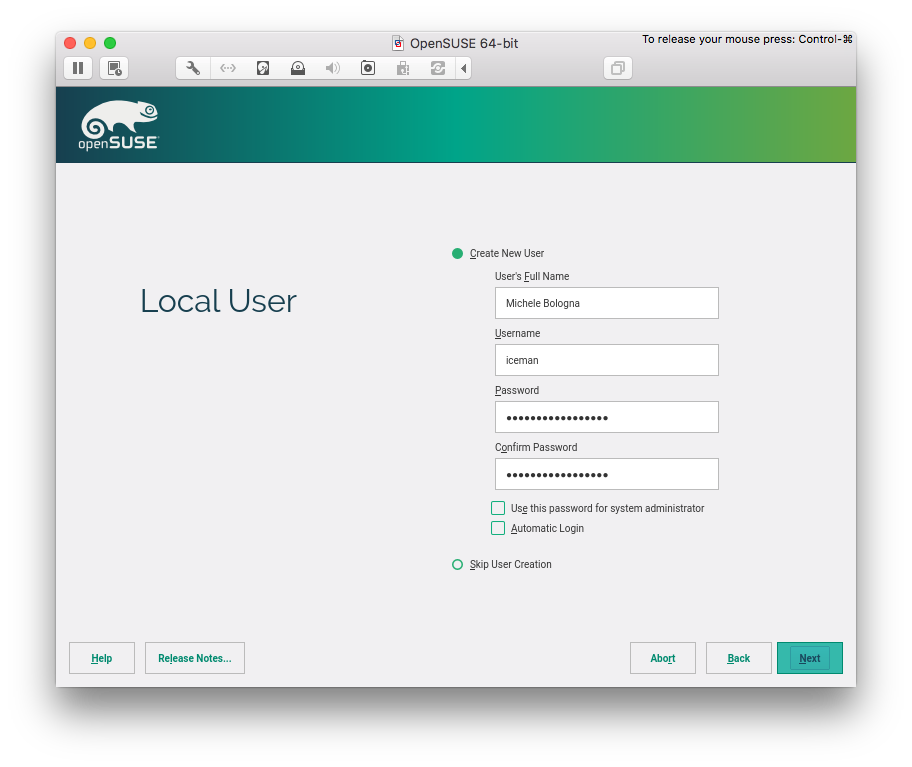
    My local user should be distinguished from the system administrator (root) account, so I deselected “Use this password for system administrator”. Of course, this will mean that root account will have another (different!) password.

    And I also do not want automatic login.

    local user creation

    Boot Loader Settings

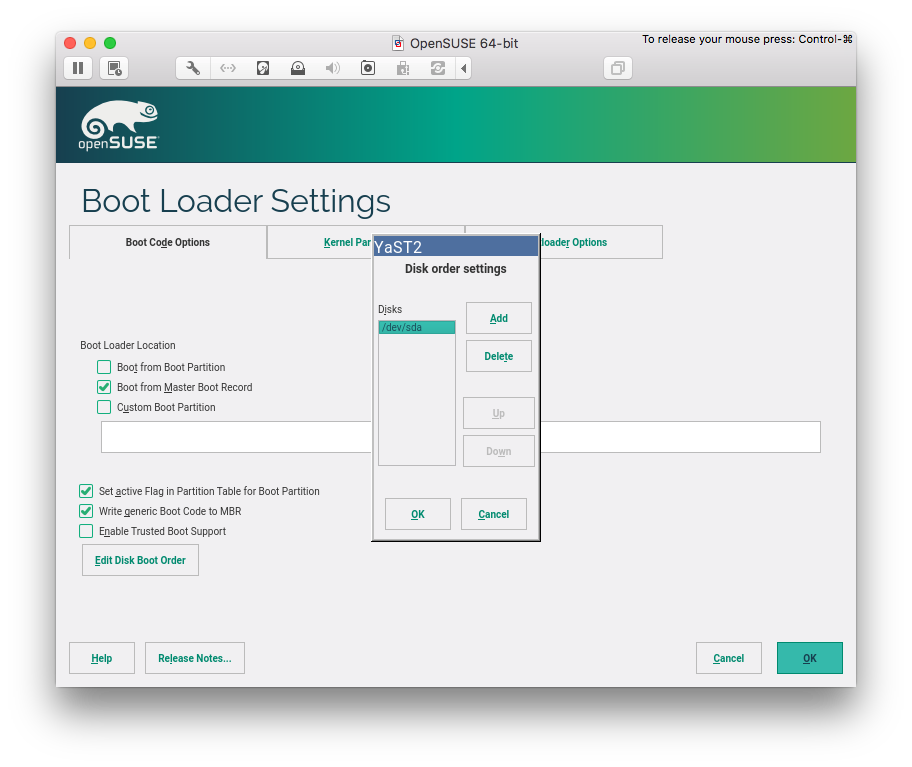
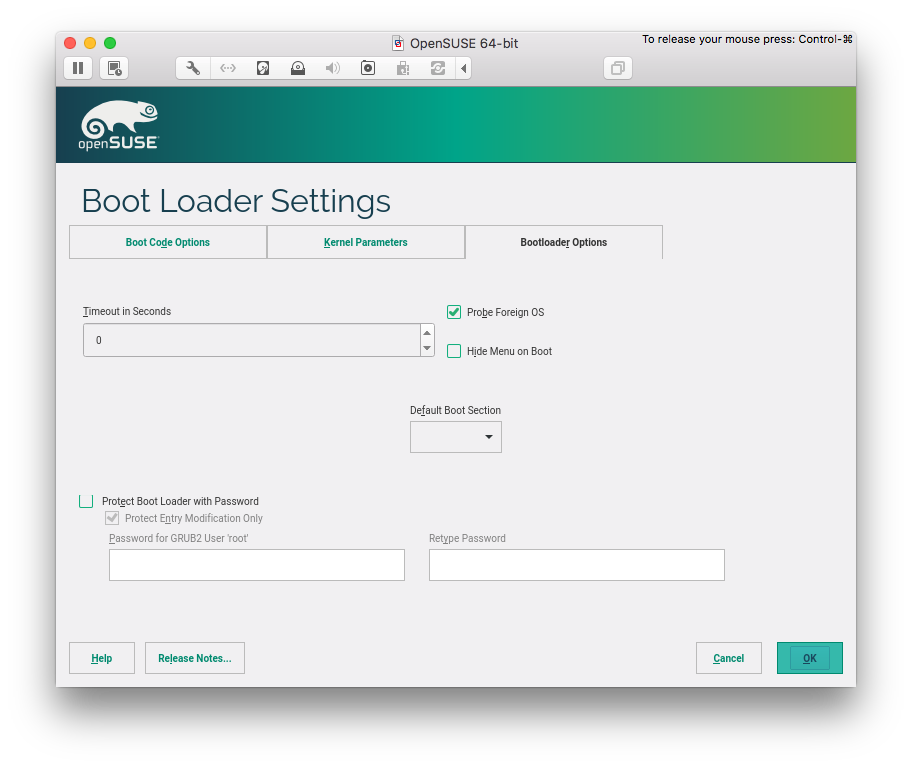
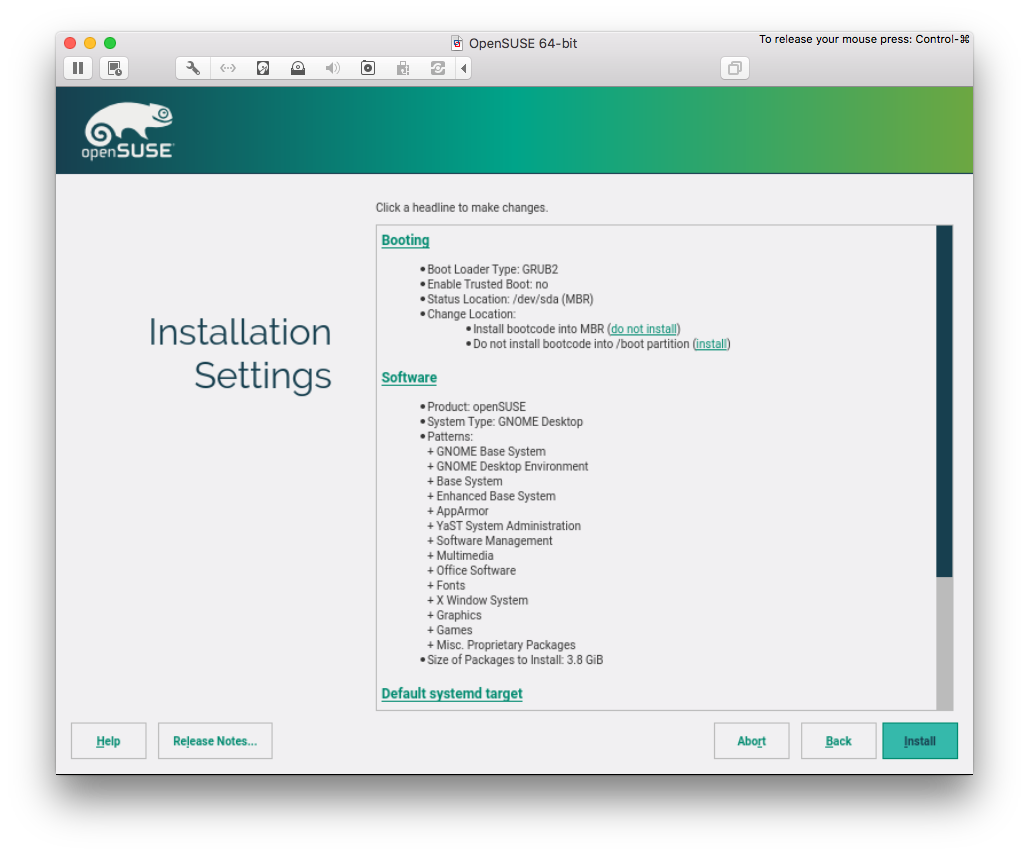
    GRUB2 should be installed into Master Boot Record (MBR) and not into /boot. If you are installing via USB key, make sure to remove it from “Boot order”. Optional: set timeout to 0 in “Bootloader Options” (so you do not have to wait for booting).

    grub configuration disk order

    grub configuration timeout

    Software

    Just go with the default selection, or, if you cannot wait, go ahead and select packages. There is no rush, though: we will install packages that I need in the next post, during the customization phase.

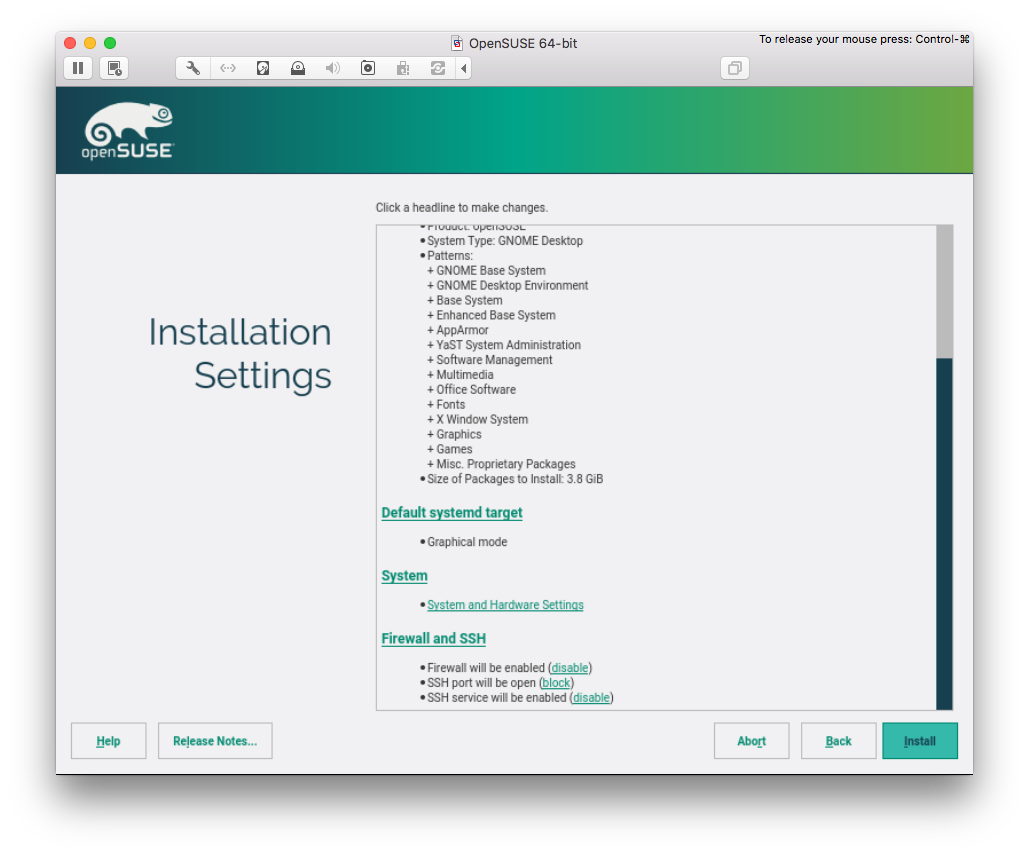
    Firewall and SSH

    I suggest to unblock SSH port and enable SSH service. WARNING: make sure to config your ssh daemon properly in order to allow only key-based logins.

    summary of installation 1

    summary of installation 2

    Conclusion

    After the installation, we have a plain Gnome environment ready to rock. In the following post, we are going to customize every bit of it, installing all the packages that I think fundamental. Stay tuned!
    opensuse 42.2 desktop

  • Checkstyle and DetailAST

    If you are running Checkstyle (for checking Java style) and you are stuck with this error:

    checkstyle:
    [checkstyle] Running Checkstyle 6.11.2 on 2324 files
    [checkstyle] Can't find/access AST Node typecom.puppycrawl.tools.checkstyle.api.DetailAST
    

    which is a cryptic error with no whatsoever Google result on how to fix it, stand back: I have the solution!

    You probably have these packages installed in your system:

    % rpm -qa | grep -i antlr
    ant-antlr-1.9.4-9.2.noarch
    antlr-java-2.7.7-103.38.noarch
    antlr-2.7.7-103.38.x86_64
    

    To fix your problem, just remove ant-antlr package from your system.

  • git: deleting remote tracked branches

    Since I’m always DuckDuckGo-ing for these information, I’ll set a note here for future reference and for all of you, fellow readers.

    Situation: one (or more) remote-tracked git branches got deleted (either locally or remote). You are in either one of the two cases following:

    • you have deleted the local branch and you want to delete that branch in the remote too. What you want is:

    git push <remote> :<deleted_branch>

    • someone (you or other allowed members on the remote) has deleted a remote branch. To delete all stale remote-tracked branches for a given remote:

    git remote prune <remote>

  • Unusual way of backup sensitive data

    Over the weekend I was in a backup mood, so I decided to start backup everything on my local computers. First of all, I started with sensitive data (which I call vault), namely:

    • credentials for local and remote machines
    • SSH keys (and associated passphrases)
    • Hard Disk encryption keys
    • Wi-Fi passwords
    • PGP keys (and associated passphrases)
    • PINs
    • Credit Card numbers

    I usually put every item of this list on an external drive which will be then copied as an offsite backup in a remote location (sorry, no cloud); and I usually store passphrases in a different drive than the ones which contains keys.

    As a shower thought, I think “Why not having a copy of all that data in a paper format?” A downside of this approach is that data is plain and accessible to everyone having a look at that paper.

    Given I recall my PGP private key passphrase very well (and it’s long enough) and key is stored in a very secure location, I decided to:

    1. Dump all the raw data of the vault in a text file
    2. Encrypt it with my public key
    3. Print the resulting ASCII file (which resulted in roughly eight A4 pages of text). I used Consolas font, size 8.

    If I would ever have to access that file, I will need to:

    1. Scan the 8 pages and OCR all data, hoping all characters are decoded correctly
    2. Retrieve my PGP private key and passphrase
    3. Decrypt it

    Yes, it’s an emergency last resort. What do you think of this approach?

  • git tip: multiple identities

    If you are using git version control for personal and work repositories, it is tricky to change your email address (in ~/.gitconfig) to properly use the correct email before committing to a repo (this is what I do, depending on the nature of the repo: personal repo -> personal email, work repo -> work email).

    Before this post, I was using some articulated methods to change my email address depending on the repo, but none of these methods was really portable (or officially documented).

    Starting from version 2.8.0, you can use “multiple identities” when committing; to achieve this, you must remove your personal details from the config with:

    git config --global --unset-all user.name

    git config --global --unset-all user.email

    and set a new option:

    git config --global user.useConfigOnly true

    Now, everytime you try to commit, git complains to instruct it with your personal details:

    % git commit
    
    *** Please tell me who you are.
    
    Run
    
    git config --global user.email "you@example.com" git config --global user.name "Your Name"
    
    to set your account's default identity. Omit --global to set the identity only in this repository.
    
    fatal: no name was given and auto-detection is disabled
    

    The only drawback of this approach is that you have to set these details on every repository. Do you know any better ideas?

  • ZeroTurnaround’s Java Tools and Technologies Landscape Report 2016

    As of every year, ZeroTurnaround released the yearly report of their survey about Java and Java-related technologies among professional developers. I find this report very interesting, and I usually compare (or discover) existing technology solutions.

    For example, right now I’m currently thinking about moving to Intellij IDEA.

    How do you measure up against the report?

  • OpenVPN with multiple configurations (TCP/UDP) on the same host (with systemd)

    OpenVPN with multiple configurations (TCP/UDP) on the same host (with systemd)

    As much more people are getting worried about their online privacy (including me), I started to use a server as a VPN termination (with OpenVPN) when I need to access the Internet via non-secure wired or wireless networks (e.g., hotel wireless network, airport Wi-Fi, etc.).

    Some overzealous network admins, though, try to lock down the network usage to users, for understandable reasons: fair usage, fear of abuse, and so on. To name some of such limitations:

    • non-encrypted traffic sniffing (who trusts HTTP nowadays for sensitive data? Surprisingly, there is still someone who deploys HTTP for that!);
    • traffic shaping (especially downstream);
    • destination ports limited to 80/tcp and 443/tcp;
    • dns locking and consequently leaking (yes, I’m paranoid).

    To overcome this limitations, I decided to use multiple configurations for OpenVPN, I wanted some flexibility on my side, offering multiple configurations of a VPN termination: one for TCP and one for UDP. I want to share some implementation notes that might save some time for whoever wants the same setup:

    • TCP subnets must be separated from UDP subnets (I use a /24 for each one; take a look at IANA Reserved addresses and do your math);
    • You can use the same tun adapter for both servers at the same time.

    Now for the tricky part:

    • Most OpenVPN implementations (depends on your distro) require that you supply a configuration file. In our case, we prepare two config files (one for TCP and one for UDP) under /etc/openvpn
    /etc/openvpn # ls *.conf
    tcp-server.conf  udp-server.conf
    • systemd must be informed on which configuration it must start whenever openvpn is launched via its service unit. To accomplish that, open /etc/default/openvpn and specify the VPN configurations that must be started:
    # Start only these VPNs automatically via init script.
    # Allowed values are "all", "none" or space separated list of
    # names of the VPNs. If empty, "all" is assumed.
    # The VPN name refers to the VPN configutation file name.
    # i.e. "home" would be /etc/openvpn/home.conf
    #
    # If you're running systemd, changing this variable will
    # require running "systemctl daemon-reload" followed by
    # a restart of the openvpn service (if you removed entries
    # you may have to stop those manually)
    #
    AUTOSTART="tcp-server udp-server"
    • Finally, we need to reload systemd as instructed above:
    # systemctl daemon-reload
    • Now, if you restart OpenVPN with systemctl restart openvpn and you check your logs, you should see that both your VPN are started:
      11:38:33 vpn02.lin.michelebologna.net systemd[1]: Starting OpenVPN connection to tcp-server...
      11:38:33 vpn02.lin.michelebologna.net systemd[1]: Starting OpenVPN connection to udp-server...
      11:38:33 vpn02.lin.michelebologna.net systemd[1]: Started OpenVPN connection to tcp-server.
      11:38:33 vpn02.lin.michelebologna.net systemd[1]: Started OpenVPN connection to udp-server.

      and you can also check that OpenVPN is listening with netstat:

      # netstat -plunt | grep -i openvpn
      tcp 0 0 0.0.0.0:1194 0.0.0.0:* LISTEN 1635/openvpn
      udp 0 0 0.0.0.0:1194 0.0.0.0:* 1644/openvpn

  • PSA: this website now is TLS-enabled

    After some thinking, I decided to switch my current domain registrar and hoster: in fact, I stayed for 5 years with Netsons.org for domain registration and hosting. I had a very pleasant experience with them, I will recommend their hosting to everyone (it’s very cheap in the plethora of Italian super-expensive hosters).

    Since I recently got a with at DigitalOcean, I thought: “hey, maybe I can host myself!”, and that’s what I have done: my new registrar will be namecheap, and my new hoster will be… me!

    Switched registrar, transferred the domain changed DNS to point to DigitalOcean, and that’s where the fun begins: configuring a webserver to serve my website.

    Why is that fun? Because I get the chance to decide whichever technologies of the L(A|E)MP stack can I use. In fact:

    • After years of Apache, I switched to nginx (with TLS and spdy HTTP2 enabled)
    • With some reckless considerations beforehand, I decided to switch to PHP7 (instead of 5) with php7.0-fpm
    • MySQL is the database of choice (no changes here)
    • TLS support: encryption everywhere, yay!
    • TLS certificate: obviously, I’d try (Let’s Encrypt)[https://letsencrypt.org/]

    After some headaches (and a little downtime), I finally managed to self-host myself: if you are seeing this, it means that you are automatically redirected to the encrypted version of this site (courtesy of nginx), and that the certificate is trusted (by the chain of Let’s Encrypt).

    Enjoy!